
Grant Inception-to-Date
A grant inception-to-date inquiry form used to view the adjusted budget, current and inception-to-date activity and available balance of a grant/contract. This form is an alternative to producing the hard copy Grant Inception to Date Report FRRGITD.
Enter “FRIGITD” in the “Search…” box and either select from the list that populates or press “Enter.”
The “Chart of Accounts:” will self-populate with “ E” for Eastern Washington University. The cursor will be in the “Grant:” dialog. Press “Tab” and enter the index number into the “Index” dialog. Press Tab to enter a “Date From (MM/YY)” and “Date To (MM/YY).” To query current period activity (i.e.: September 2014), enter the most recent calendar month (ie: 09) and year into both the “ Date From (MM/YY)” and “ Date To (MM/YY)” fields.
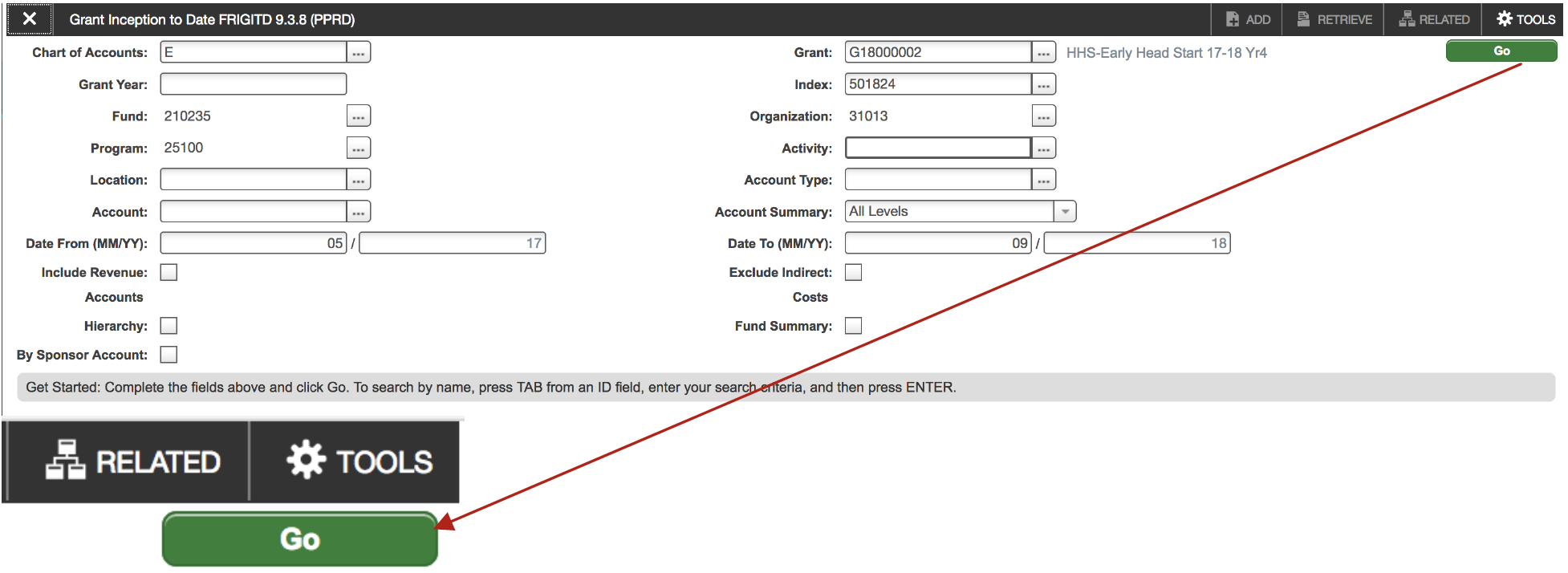
Click “Next Block” down arrow (located at the bottom left of the screen) to populate the fields below:
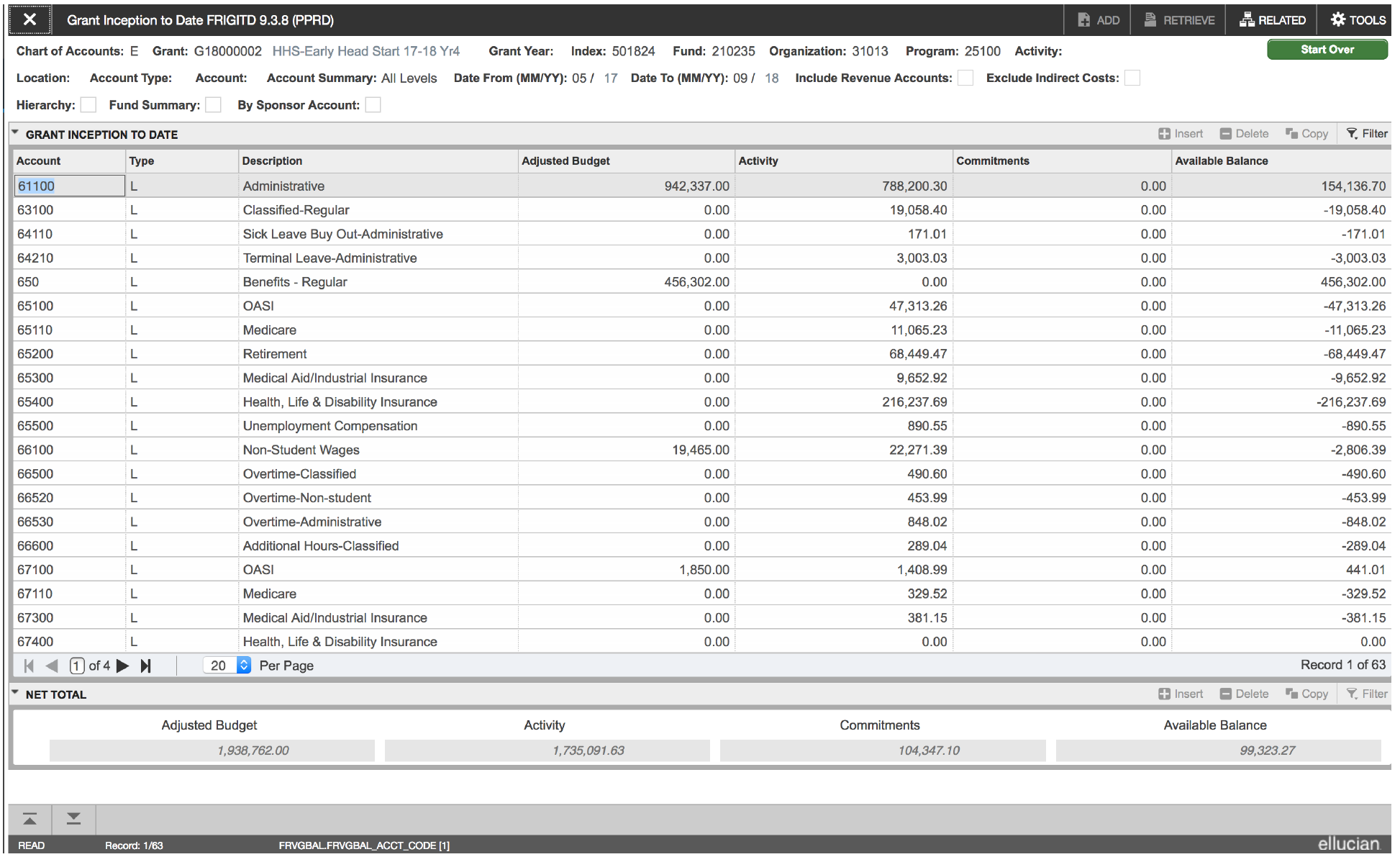
To retrieve the grant inception to date activity, Click the “Start Over” button:
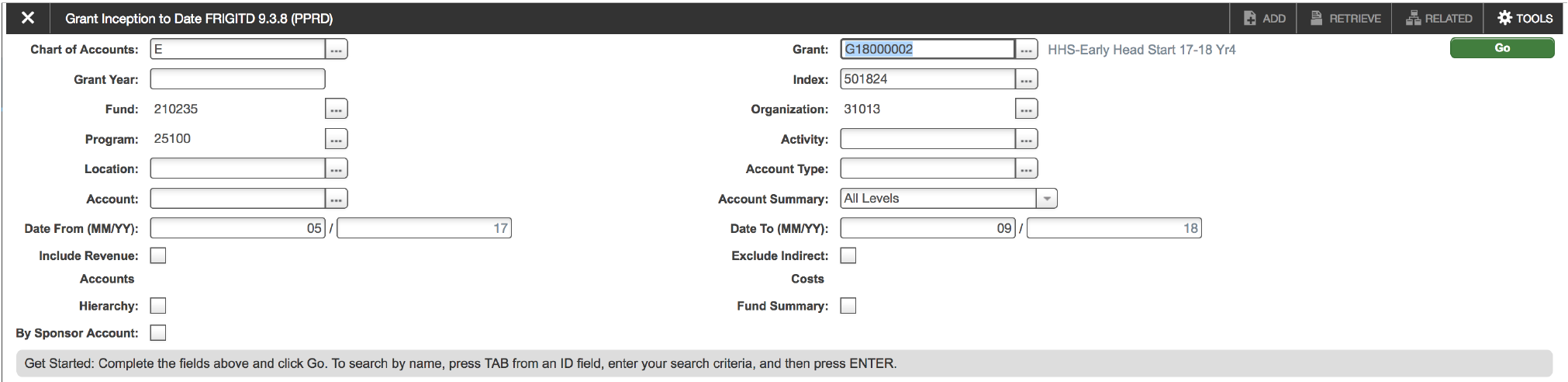
The “ Grant:” field should be highlighted. Press “Tab” and the “ Date From” field should update to the grant inception month and year. Enter the desired ending calendar month in the “ Date To” field and click “Go” to run the inquiry (It’s best practice to double check the dates after pressing “ Go” to verify the information wanted is being retrieved):
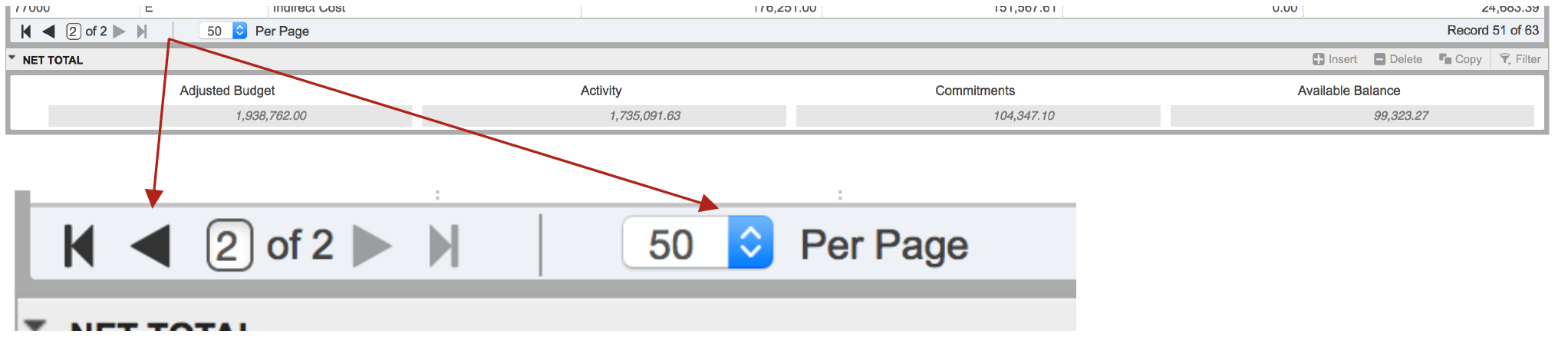
To see each row, use the arrows to look at multiple pages and/or change the number of lines per page visible:
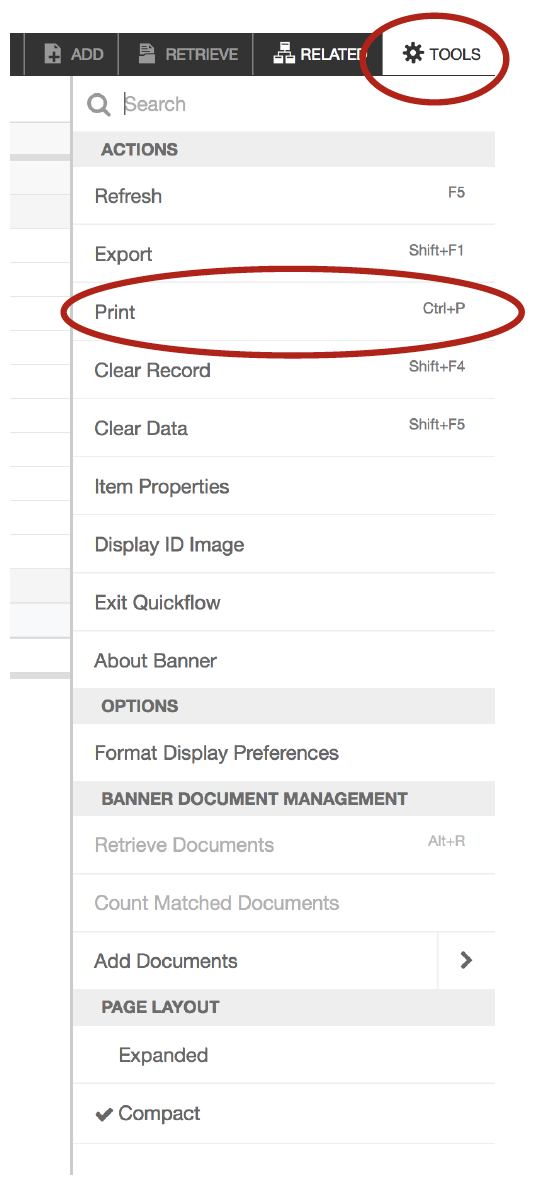
If a screen shot of the totals is needed, select “Tools” and “Print,” use the Ctrl+P keyboard function, or if using a Mac, Command+P. The printing dialog will display.
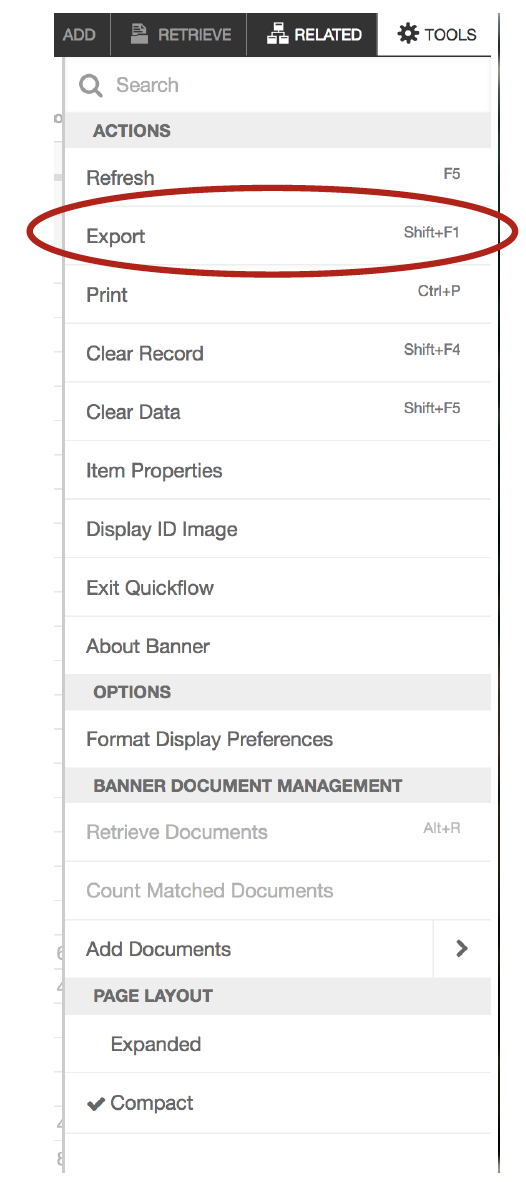
To export the data set to Excel, click “TOOLS” and “Export,” or Shift+F1.
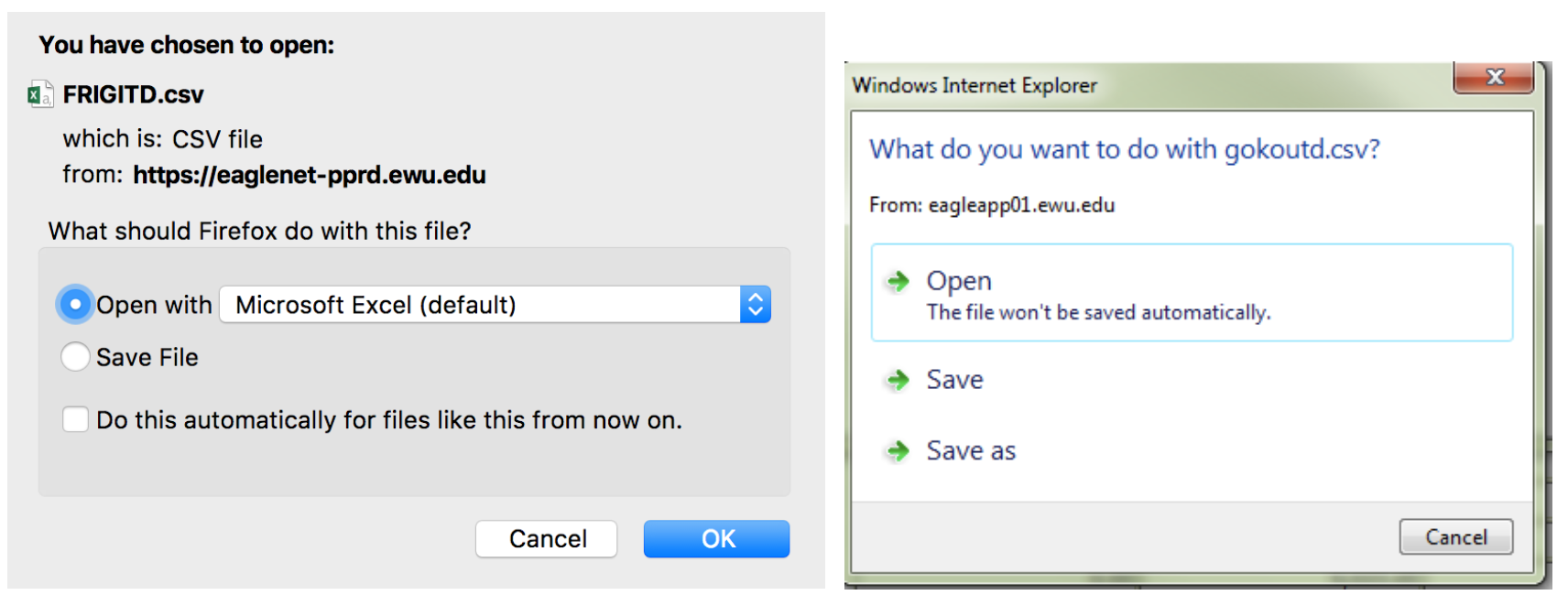
A dialog will appear (they may look different depending on the browser being used). Click “OK” or “Open” and Excel should open automatically with the raw data from the FRIGITD form displaying:
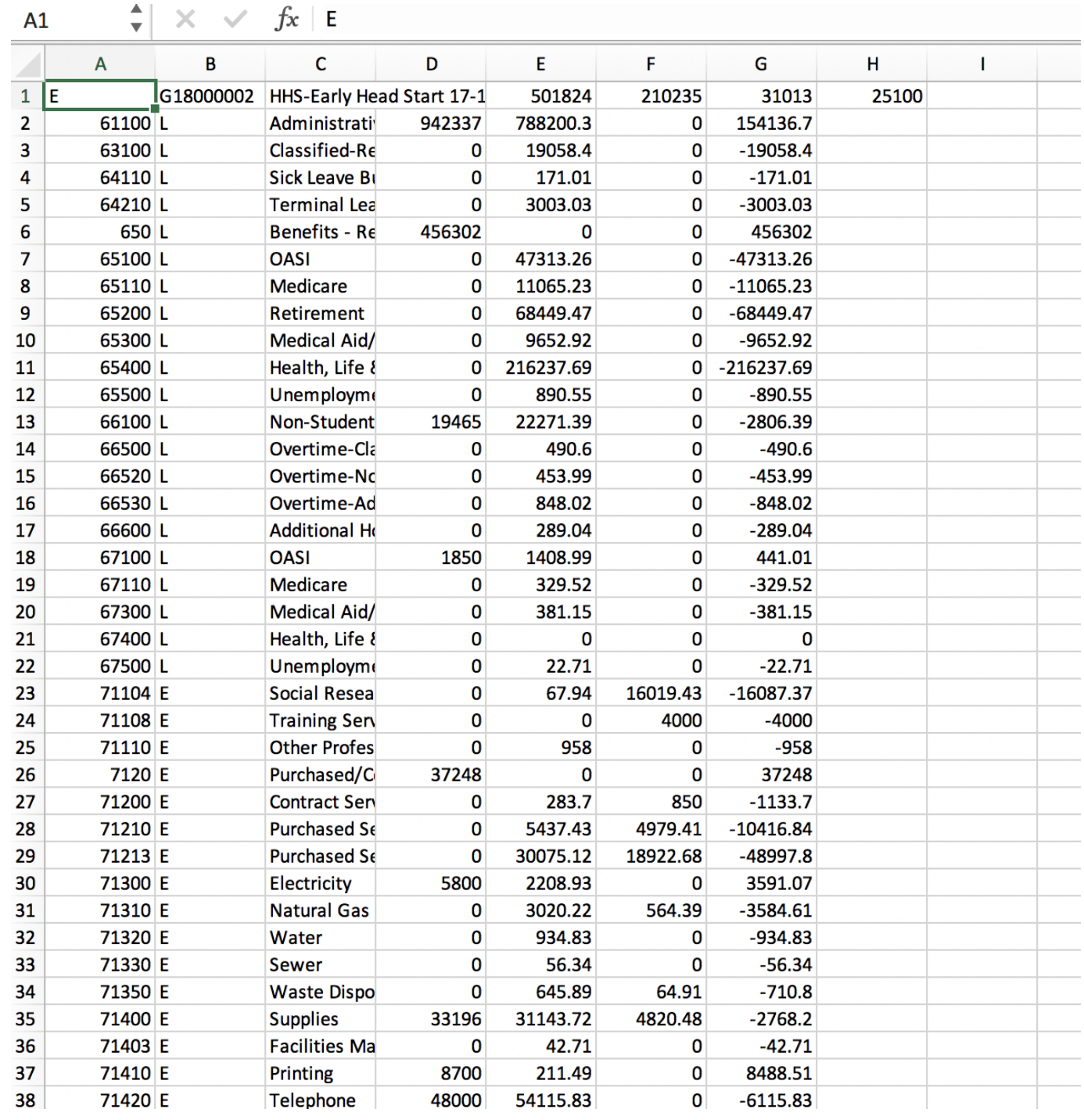
If the goal is to format the data, perform a “Save As…” on the data set and change the .csv extension to an .xlsx (Excel) extension.
To see specific transaction detail information about a specific budget line item, insert the cursor in the “Adjusted Budget” field of the specific budget line item:
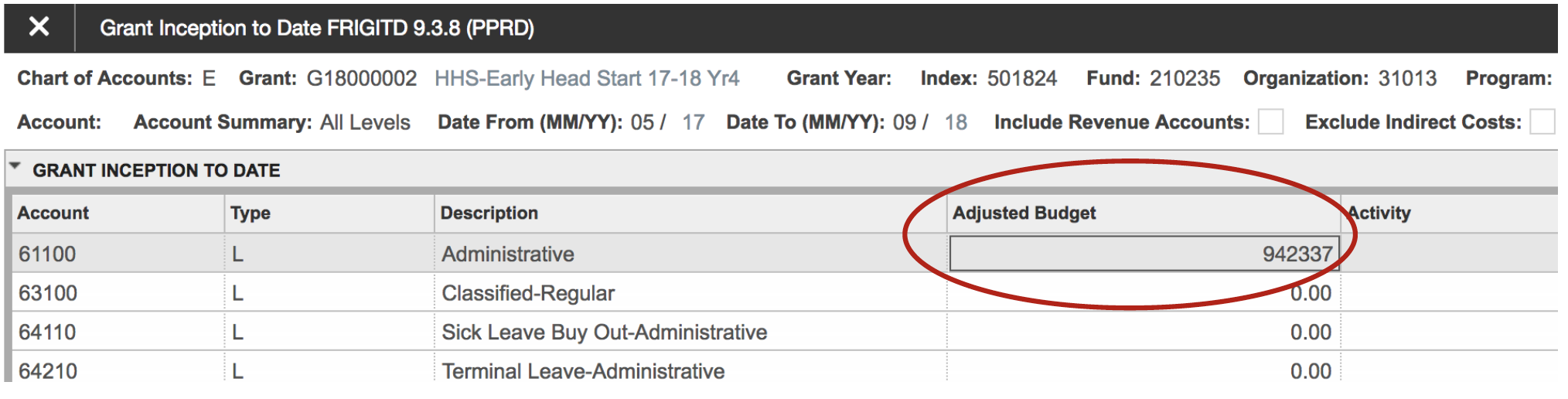
Click “Grant Detail Information [FRIGTRD] under the “RELATED” menu:
![Shows the "Related" menu to select "Grant Detail Information [FRIGTRD]" form to see more detailed information about a specific line item.](https://in.ewu.edu/ogrd/wp-content/uploads/sites/63/2019/06/frigitd11.png)
And the “Grant Transaction Detail Form FRIGTRD” will open. Click “X” in the upper left corner to return to FRIGITD.