Purchase Requisition User Approval
Purchase Requisition user approval screens for approving a purchase requisition. Available to those designated as “Approvers.”
Permission is required to use this form. If an error occurs, another way to see the details of a purchase requisition is to log into EagleNet SSB and select “Finance” then “View a Document” and enter the requisition number in the “Document number” field. For detailed instructions, see the section titled “View PO/PR Status” on the Sponsored Resources page.
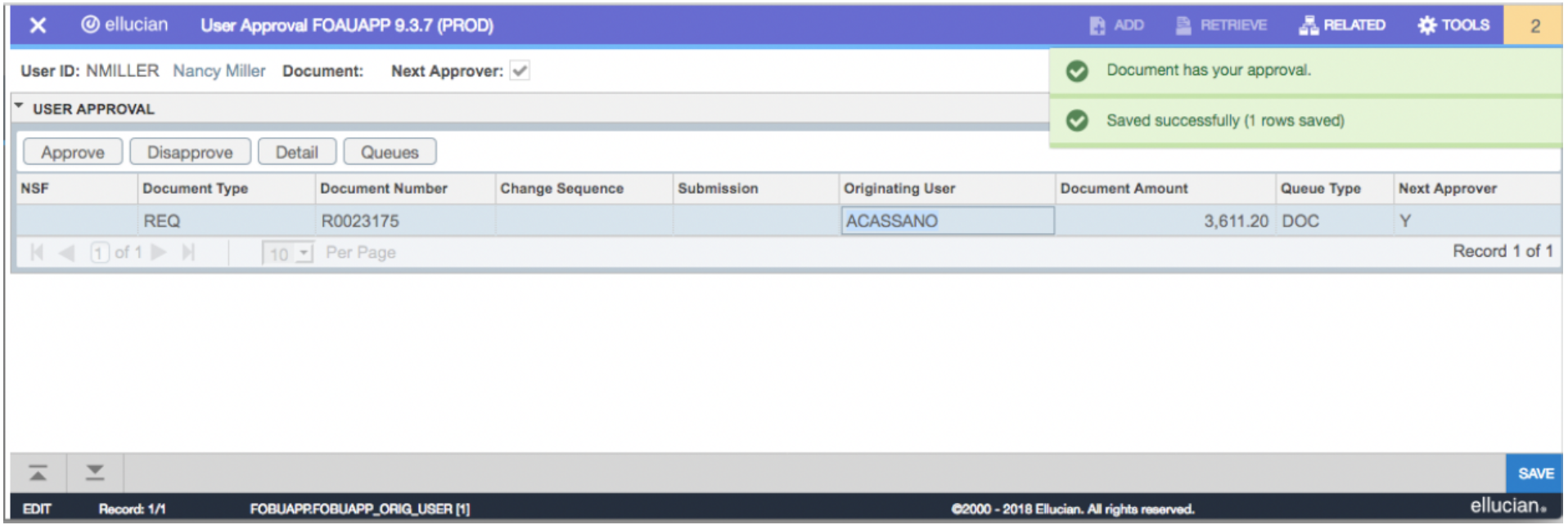
To approve a purchase requisition, enter “FOAUAPP” in the “Search…” box and either select from the list that populates or press “Enter.”
Enter user ID and select “Go” to see purchase requisitions in the approval queue (if any).

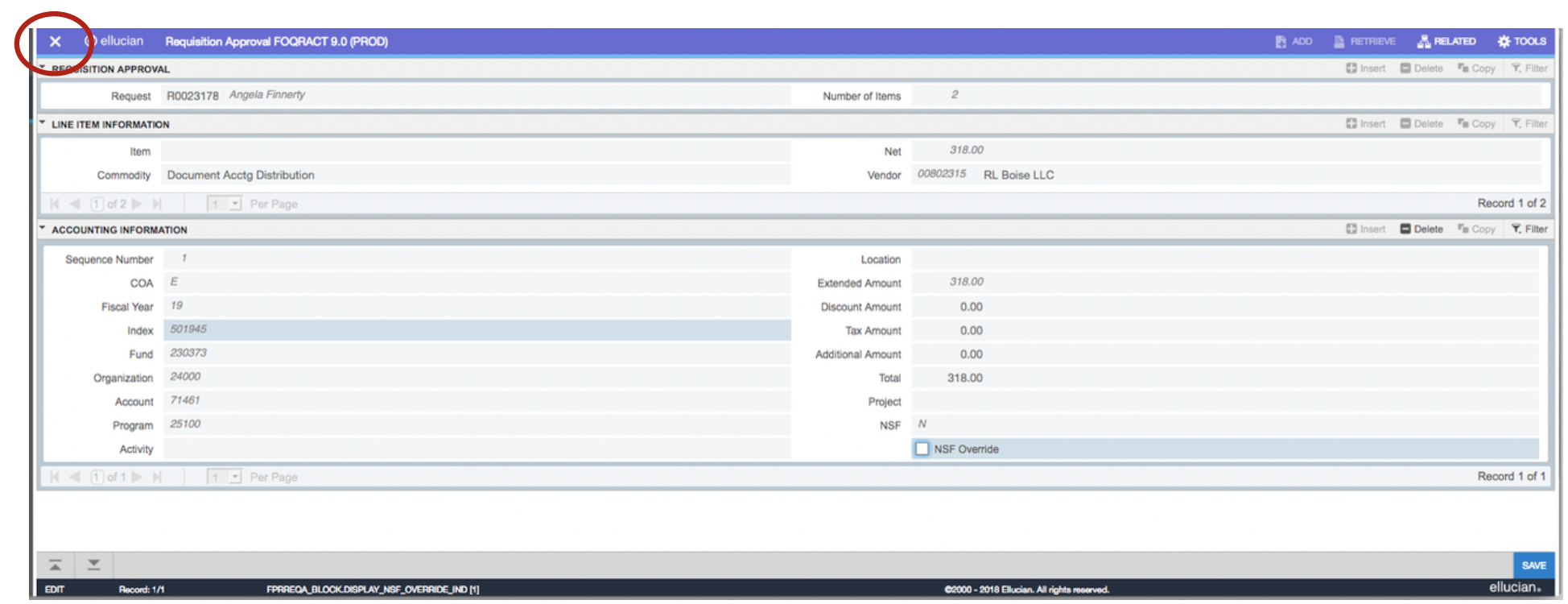
To review the detail behind the individual purchase requisition, click the “Originating User” field to highlight the record and click the “Detail” button:

Click the “X” in the upper left corner of the screen to exit and return to the main approval area.
If the highlighted Requisition is to be approved, click the “Approve” button. A dialog box will open. Select “OK” to confirm the approval.

A confirmation notice will appear in the upper right corner and the requisition will disappear from the queue indicating the requisition has been forwarded to the Purchasing Department’s approval queue.